
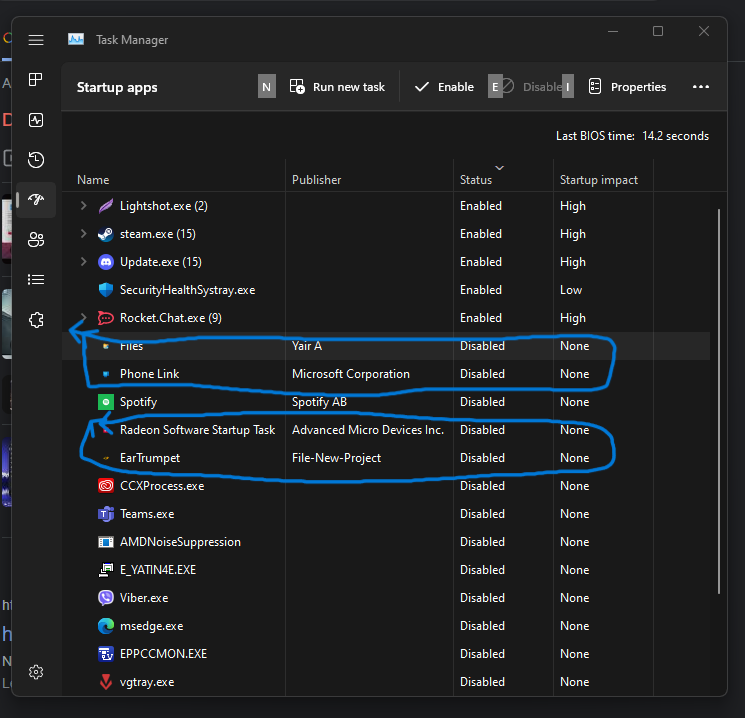
Have you seen a startup app labeled as 1 task manager in your Windows Task Manager? It can look strange. It may have no picture, no maker name, and you can’t click on some parts. Do not worry. This happens a lot. It links to how Windows starts programs. In this guide, we explain why it shows up. We tell you how to fix it in easy steps. This works for Windows 10 or 11. We use simple words.
What Does Startup App Labeled as 1 Task Manager Mean?
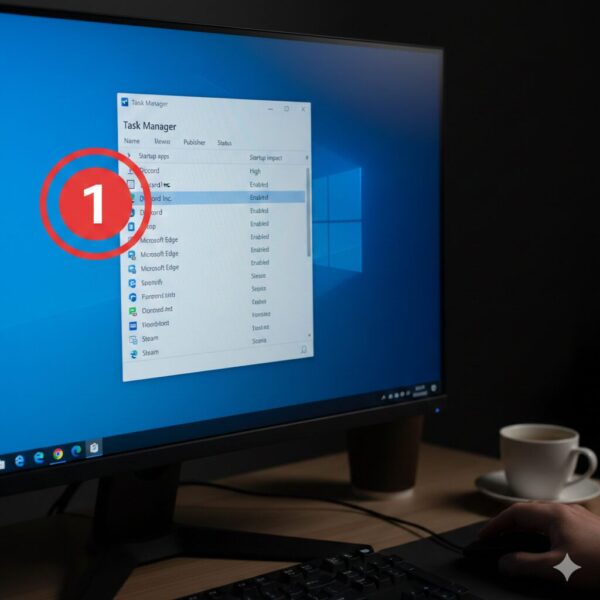
Task Manager in Windows has a tab for startup. It shows programs that start when your computer turns on. These help your computer work fast. But sometimes, you see a weird one named “1.” It may show no file spot or say “unknown maker.” This is not always bad. It is often a small mistake from programs you added or took away.
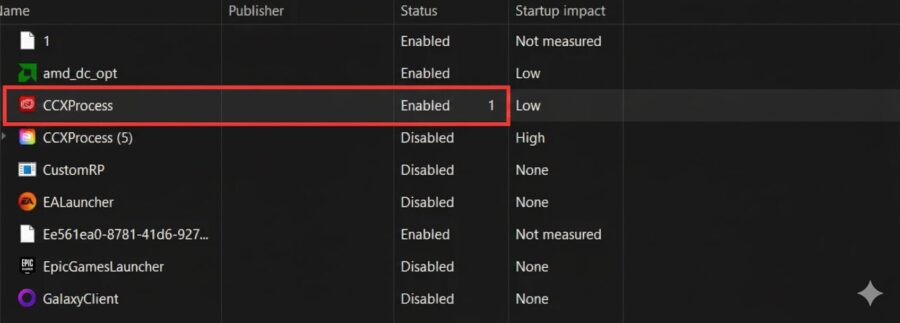
People on online talks say this comes from games or helper tools. For example, some game players see it after changes or removals. It is not just one program. It is a Windows mix-up. Think of it as a note your computer can’t read right. Next, we look at why it happens1.
Why Do You See Odd Startup Entries in Windows?
Why does this show up? Here are the main reasons. We use real stories from users and tech tips.
- Bad Removals: When you take away a program, like a game from Steam, it might leave junk. If the path has no quotes, Windows reads it wrong. It shows a simple name like “1.” This makes invalid registry startup entry problems.
- Bugs from Games and Tools: Games or camera apps make short notes in the startup list. If made wrong, they look like random filename in windows startup. One game called “Once Human” causes entries like “1” or long codes. These are maker mistakes.
- Wrong Setup in Registry: The registry is like a book of notes for Windows. It keeps startup info in spots like Run keys. A bad add can miss the full path. This leads to startup registry error windows. You see blank app name in task manager or numbers.
- Leftovers from Adding and Removing Often: If you try many new programs or games, old bits stay. Ghost startup entry windows like this happen to gamers or tool users.
This is common. Online groups have many users with the same windows startup troubleshooting needs. For example, after game add-ons, new entries appear. The program does not clean up well2.
Is the Startup App Labeled as 1 a Virus?
Many people think an unknown program in task manager means a virus. It makes sense. Odd names look bad. But most times, it is safe.
- Signs It Is Safe: No file spot, parts you can’t click, and no slow computer mean it is just a mix-up. Checks with Windows tools often find nothing wrong.
- When to Check More: If your computer is slow or has pop-ups, it could be suspicious startup program windows. Long code names might look like bad programs, but they are often safe trackers.
To be sure, do a fast check. Open Windows Security. Pick Virus & threat protection. Click Quick scan. If clean, it is likely a corrupted startup entry from good programs. Online places like Tom’s Hardware say even odd game entries are not viruses.
For calm, read talks on tech sites. If you have other worries, like bad calls, look at tips: Protect Your Phone Number Online or Spotting and Reporting Phone Scams.
How to Find and Remove the Startup App Labeled as 1
You can fix this easy. Follow these steps for the task manager startup item named 1.
- Open Task Manager: Press Ctrl + Shift + Esc. Go to Startup tab3.
- Turn It Off: Right-click “1” and pick Disable. This stops it from starting. You do not delete it yet.
- Look for File Spot: If you can click, right-click and pick Open file location. This shows where it comes from, like a game folder.
- Use Autoruns Tool: Get Autoruns from Microsoft site. It is free. Run it with admin rights. Look in Logon tab for the entry. Right-click to delete or see the note spot.
- Change Registry by Hand (For Experts): Press Win + R. Type regedit. Press Enter. Go to HKEY_CURRENT_USER\Software\Microsoft\Windows\CurrentVersion\Run. Find “1” or long code. Right-click and delete. Save a copy first with File > Export.
- Check System Files: Use SFC tool. Open Command Prompt with admin. Type sfc /scannow. Turn off and on after.
- Test with Clean Start: Search msconfig in Start. In Services, hide Microsoft ones. Turn off others. Start again to test.
These fix most windows 11 unknown app fix troubles. Users say it works after taking away the bad game. For better speed tips, see Virtual Phone Numbers for safe tests.
Tools to Handle Startup Items
Task Manager is basic. Use better tools for startup process identification.
- Autoruns: Good for finding hidden startup processes windows. It shows file spots and checks signs.
- Malwarebytes: Free check for file path missing in task manager items that might be bad.
- CCleaner: Cleans leftover registry keys. But be careful.
Think about startup folder vs registry run keys. Folders hold shortcuts. Registry has deeper notes. Task Manager shows both but hides info on broken ones.
Numbers show more than half of Windows users have startup mess. This makes start time longer by 30 seconds. Clean up helps fix system performance issues.
Ways to Stop Weird Startup Entries
Stop weird GUID startup entries before they come.
- Pick Good Programs: Use trusted places like Steam. Read what others say about how it adds.
- Remove Right: Do not stop ads in the middle. Use built-in removers or tools like Revo.
- Watch Changes: After new ads, check Task Manager. Turn off what you do not need.
- Update Windows: Go to Settings > Update & Security. New fixes help Windows 11 startup issues.
- Save Copies Often: Use OneDrive or outside drives to keep safe from registry misconfiguration.
This way, you skip debugging unknown startup items. For tech safety, see How to Access Your Router Safe.
Stories from Real Users
From online shares, one user fixed “1” by removing a game add-on. Another used a tool to find a code as a game note. These show a broken uninstall process as a big reason.
Words from helpers: “Most odd notes are safe leftovers,” says a Microsoft group leader. “Use Autoruns to check.”
If you play games, watch for tools that add startup programs without file path. Normal users might not see them until the start is slow.
For more on finding unknowns, like phone numbers, see Who Is Calling from 5104799266 or How to Find Out Who a Phone Number Belongs To 773-899-1172.
FAQs on Startup App Labeled as 1 in Task Manager with Deep 2-Line Explanations
Why do I have a startup app labeled as 1 in Windows task manager?
This entry often appears due to sloppy software installations or uninstallations, where registry keys get corrupted or paths lack proper formatting like quotes, causing Windows to display a generic numeric label instead of the actual program name. Deeply, it stems from how the Windows registry handles Run keys; if an installer from games or utilities like Steam fails to clean up properly, remnants create these invalid entries that don’t execute but clutter the startup list, potentially slowing boot times if accumulated.
How to remove unknown startup programs with no file location?
Start by disabling the entry in Task Manager to prevent it from loading, then use advanced tools like Microsoft’s Autoruns to locate and delete the corresponding registry key safely. More deeply, this involves navigating the registry editor (regedit) to HKEY_CURRENT_USER\Software\Microsoft\Windows\CurrentVersion\Run, backing up first, and removing the faulty key; this method ensures no system instability while addressing root causes like misregistered paths from third-party software.
Is a task manager startup program named 1 a virus?
Usually not, as it’s typically a harmless artifact from legitimate software bugs rather than malicious code, but always run a full antivirus scan with tools like Windows Defender to confirm. Diving deeper, suspicious entries mimic viruses if they have GUID names or no details, but in context, they often trace to game trackers or utility leftovers; if no unusual behavior like high CPU usage occurs, it’s safe, though vigilance against real threats via regular updates is key for overall security.
How to delete corrupted or invalid startup registry entries?
Use the registry editor to locate and remove the problematic key after exporting a backup, or employ Autoruns for a user-friendly interface that verifies and deletes without risks. On a deeper level, these entries arise from installer errors disrupting the registry’s structure, leading to performance hiccups; fixing them optimizes startup by eliminating dead references, but always reboot and test afterward to ensure no essential processes are affected, maintaining system integrity.
Conclusion: Fix Your Windows Startup Now
To wrap up, a startup app labeled as 1 task manager is mostly a safe mix-up from program troubles. Not a big danger. Turn it off, check your system, and use tools like Autoruns to clean it. This makes your computer faster. Do this often to stop mysterious startup entry windows from coming back. Most users fix it fast.
Have you had this on your computer? Tell us your fix in comments. What helped you?
References
- Malwarebytes Forum on Weird Task Manager Entries – Covers bad stuff checks and tool tips to find out. ↩︎
- Tom’s Hardware Forum on Bizarre Startup Programs – Tells about note links to games like Once Human. ↩︎
- Reddit Thread on Random Startup Files in Windows 11 – Talks about game reasons and easy turns off. ↩︎