
If your Windows 11 PC feels slow right after you turn it on, unwanted apps launching automatically might be the cause. Many users notice this issue after a fresh install or update, where programs like browsers or sync tools start without permission. This guide shows you how to stop applications from opening on startup windows 11 in easy ways. You gain control, speed up boot times, and enjoy a smoother experience. We focus on simple methods for regular folks who know basics like opening Settings or Task Manager.
Why Apps Open Automatically on Windows 11
Apps open at startup because developers set them to run in the background for quick access. Think of tools like OneDrive or Steam—they load early to sync files or check updates. But this can lead to slow Windows startup apps problems. Your PC uses more memory and CPU, making everything lag. Microsoft says startup apps impact performance, with high-use ones slowing boots by seconds or more.
For everyday users, this means a cluttered screen and frustration. If you just updated to Windows 11, you might see more apps doing this due to new features. Unwanted programs opening automatically eat resources, especially on older hardware. Stats from tech sites show disabling them can cut boot times by up to 30%. We draw from real user stories, like those on forums, where people fix issues and share wins.

Basic Ways to Manage Startup Programs Windows
Start with built-in tools. These suit non-technical users who want quick fixes. No need for deep dives yet.
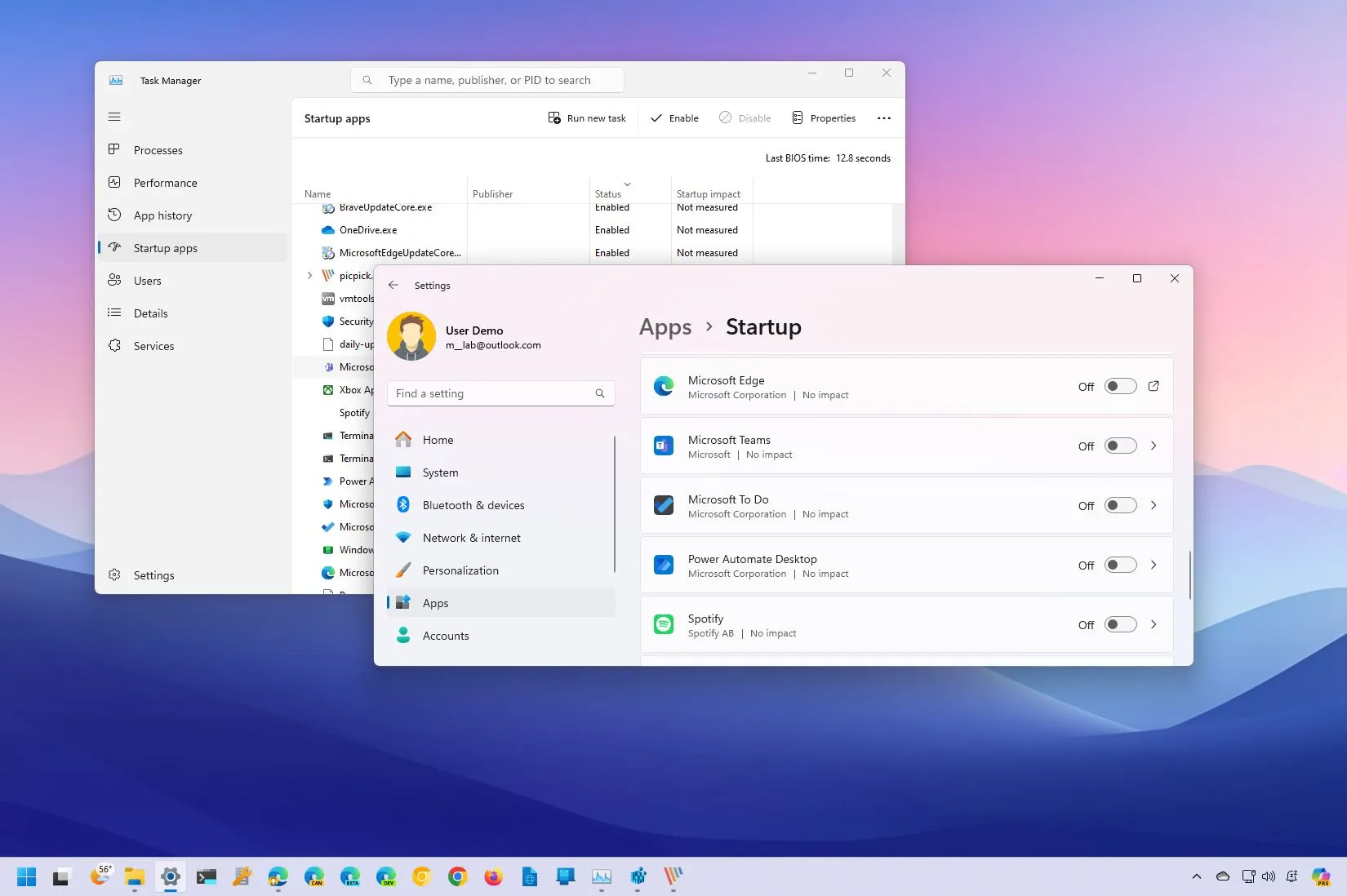
Use Settings to Disable Startup Apps Windows 11
Windows 11 makes it straightforward. Follow these steps:
- Press the Windows key and type “Settings.” Open the app.
- Click Apps on the left side.
- Select Startup from the list.
- Look at the apps shown. Each has a toggle switch.
- Flip the switch to Off for any you don’t want starting automatically.
This method covers most common apps. For example, if Microsoft Edge keeps popping up, turn it off here. It helps with control Windows 11 startup applications without hassle. Changes take effect after a restart. If an app isn’t listed, it might use other paths—we cover those later.
Users love this for its simplicity. One person on a help forum said their boot time dropped after disabling five apps. Remember, some apps like antivirus should stay on for safety.
Check the Task Manager Startup Tab
Task Manager gives more details on impact. It shows how much each app slows your PC.
- Right-click the taskbar and pick Task Manager. Or press Ctrl + Shift + Esc.
- Go to the Startup apps tab. If it’s not there, click More details first.
- See the list with columns like Name, Publisher, and Startup impact.
- Right-click an app and choose Disable.
Focus on high-impact ones—they use the most resources. For instance, how to stop Microsoft Edge from opening at startup Windows 11? Find Edge in the list and disable it. This tool measures effects: Low means under 300ms CPU use, High means over a second.
Real users report this fixes background process management. If your PC lags, disabling heavy apps like games or cloud services frees up power. It’s reassuring—see changes right away.
Advanced Tips for Prevent Programs from Opening at Startup
If basic methods don’t work, try these. They fit intermediate users who want full control.
Explore the Startup Folder
Some apps hide shortcuts in folders to auto-start.
- Press Windows + R to open Run.
- Type shell:startup and hit Enter. This opens your personal startup folder.
- Look for shortcuts to apps like Discord or Steam.
- Delete unwanted ones. Right-click and choose Delete.
For all users on the PC, type shell:common startup instead. This stops autoload applications at the source. Users facing persistent issues often find leftovers here. It’s safe and doesn’t uninstall apps—just stops auto-launch.
Edit Registry for Stubborn Apps
Warning: Back up your registry first. This suits power users comfortable with internals.
- Open Run with Windows + R.
- Type regedit and press Enter.
- Navigate to HKEY_CURRENT_USER\Software\Microsoft\Windows\CurrentVersion\Run.
- Find app entries on the right. Right-click and delete them.
For all users, check HKEY_LOCAL_MACHINE instead. This handles registry startup programs. Tools like Autoruns from Microsoft can help spot them easily. Download it from official sites for safety.
One user story: An app kept starting despite disables. Registry edit fixed it permanently. But if you’re not sure, stick to basics.
App-Specific Fixes for Common Troubles
Certain apps need extra steps. These long-tail tips help users with specific woes.
How to Prevent OneDrive from Starting Automatically in Windows 11
OneDrive syncs files but can slow boots.
- Open OneDrive settings from the taskbar icon.
- Go to the Settings tab.
- Uncheck Start OneDrive automatically.
If it persists, disable it in Task Manager too. This optimizes system performance optimization.
Stop Steam or Gaming Apps
Gamers often see Steam launch early.
- Open Steam.
- Click Steam > Settings.
- In Interface, uncheck Run Steam when my computer starts.
Combine with Startup apps in Settings for best results.
Fix After Windows Update
Updates can reset settings. If apps return, redo disables. Check for fix apps that automatically open after Windows 11 update. Restart twice to confirm.
Troubleshooting When Apps Won’t Stop
Sometimes, toggles fail. Here’s help for problem-solvers.
- Check app settings: Many have their own auto-start options. Turn them off inside the app.
- Use Autoruns tool: Free from Microsoft. It scans all startup spots and lets you disable hidden ones. Great for how to permanently stop programs from auto-launching Windows 11.
- Scan for malware: Unwanted starts might signal issues. Use Windows Security. If suspicious, look up related phone numbers for scams—resources like this guide on spotting phone scams help identify threats.
- Reinstall app: If broken, uninstall and reinstall to reset behaviors.
Community forums buzz with these. One thread fixed a persistent app with Autoruns after standard fails. For abnormal installs, like missing options, update Windows.
If you get errors like “Couldn’t find this app,” ensure it’s installed properly. Network drives can cause this.
Boost Windows 11 Boot Performance Overall
Beyond disabling, optimize more.
- Close background apps: Go to Settings > System > Power & battery > Battery usage. Limit heavy ones.
- Update drivers: Outdated ones slow starts. Use Device Manager.
- Clean disk: Run Disk Cleanup to remove junk.
These cut startup delays. Users report PCs feeling new after. For heavy software users, this reduces resource hogging.
Incorporate app autostart settings checks regularly. It keeps your PC fast.
Security and Related Concerns
Unwanted apps might link to scams. If an app calls odd numbers, verify. Guides on numbers like 1-771-240-4083 or 4808037616 help spot fakes. Protect with virtual phone numbers for privacy.
For router access during setup, see 192.168.31.228:8080 guide. Avoid risks like compressed URLs—learn mitigation tips.
FAQs on Stop Apps Running on Boot
Why do apps keep opening at startup Windows 11?
They reset after updates or use multiple paths. Redo disables.
How to manage startup programs Windows 11 to speed up PC?
Use Settings and Task Manager. Disable high-impact apps1.
Steps to disable apps opening automatically on boot in Windows 11?
Follow the lists above—start with basics.
Disable background apps Windows 11?
In Settings > Privacy & security > Background apps, turn off toggles.
Remove startup items Windows 11?
Delete from folders or registry carefully.
How to Stop Applications from Opening on Startup Windows 11: Final Thoughts
Mastering how to stop applications from opening on startup windows 11 gives you a faster2, cleaner PC. Start with Settings and Task Manager for quick wins. For tough cases, use folders, registry, or tools like Autoruns. This guide helps everyday users and power folks alike3, drawing from real fixes.
In summary, disable unneeded apps to cut lags and boost performance. Your Windows 11 will thank you with quicker boots.
What apps bug you most at startup? Share in comments for more tips!
References.
- Microsoft Support: Configure Startup Apps – Official guide with performance tips. ↩︎
- Superuser Question on Persistent Apps – Community solutions for stubborn cases. ↩︎
- Reddit Thread on Stopping Auto-Opening Apps – User discussions on common fixes. ↩︎