
:max_bytes(150000):strip_icc()/shell-startup-d64f36cb4b2d47bdaf7808924ad90384.jpg "Where to Find the Startup Folder in Windows 10: Easy Steps for Everyday Users")
If you’re a regular Windows 10 user wondering where to find the startup folder in windows 10, you’re in the right place. This folder lets you control which programs launch automatically when your PC boots up, saving you time on daily tasks like opening your email or browser. Many people use it for classic desktop apps that don’t show up in modern settings. We’ll cover simple ways to locate it, add or remove items, and keep your system running smoothly—without diving into complex stuff like the registry.
What Is the Startup Folder and Why Does It Matter?
The startup folder is a special spot in Windows 10 where you place shortcuts to programs that start on their own after login. It dates back to older Windows versions but remains useful today, especially for non-Microsoft Store apps. For casual users, it means convenience: your favorite tools ready to go without manual clicks.
Think about it— if you always open Spotify or Notepad first thing, adding them here streamlines your routine. But too many items can slow your boot time. Studies show that high-impact startup programs can add seconds or even minutes to startup, depending on your hardware. For instance, apps using heavy CPU or disk resources during boot might extend load times by 20-50% on average PCs. Knowing this folder helps you balance speed and ease.
For shared computers, it’s even handier. Administrators or family helpers can set it up for everyone or just one person. If you’re troubleshooting slow boots, checking here often reveals culprits like forgotten installers.
Common Reasons People Search for the Startup Folder
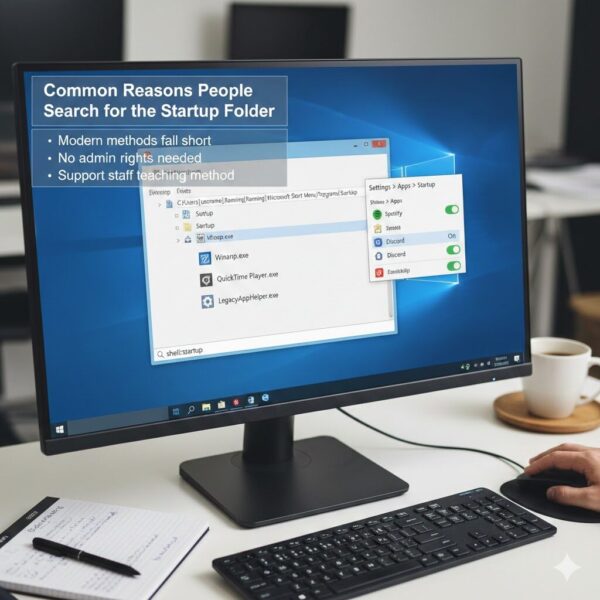
Users often look for the windows 10 startup folder location when modern methods fall short. The built-in Settings app lists some apps, but older ones hide away. Support staff teach this method because it’s straightforward—no need for admin rights in most cases.
If you’re dealing with performance issues, this folder ties into broader management. Too many auto-launches strain resources, leading to longer waits. Or, if a program won’t start automatically, placing a shortcut here fixes it quickly.
How to Find the Startup Folder: Basic Steps
Let’s get to the core. Finding the folder is easy with a few clicks. We’ll use the Run command, a quick tool in Windows.
- Press Windows key + R to open the Run dialog. This works on any Windows 10 setup.
- Type shell:startup and hit Enter. This opens the user-specific folder.
- Look around—you’ll see shortcuts for current auto-start items.
For the version that affects all users on the PC:
- Open Run again.
- Type shell:common startup.
- Press Enter to view the shared folder.
These paths are hidden by default, but the commands reveal them without unhiding files. The user folder is at %APPDATA%\Microsoft\Windows\Start Menu\Programs\Startup, while the all-users one sits at %ProgramData%\Microsoft\Windows\Start Menu\Programs\StartUp.
If the folder seems empty or missing, don’t worry—Windows sometimes doesn’t create it until needed. You can make it manually by navigating to the path in File Explorer.
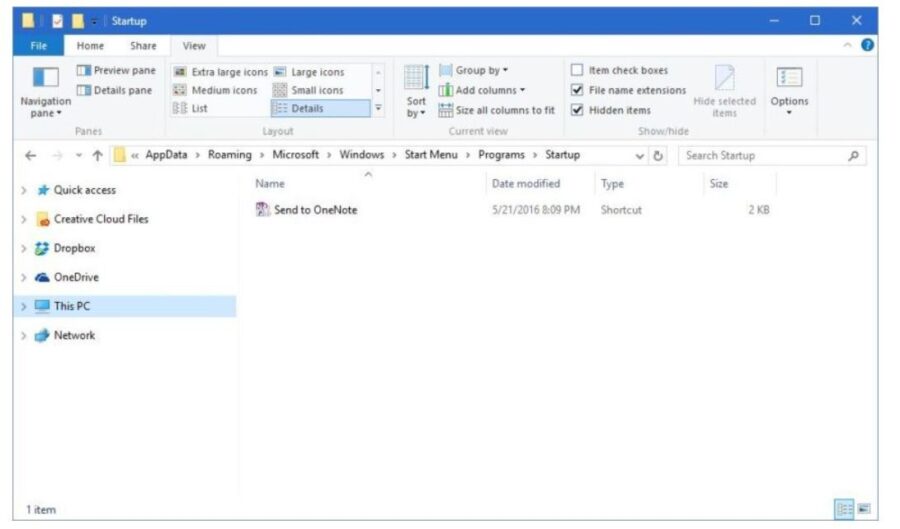
How to Access the Windows 10 Startup Folder
Where to Find the Startup Folder in Windows 10 Using File Explorer
For visual folks, File Explorer offers another path. Enable hidden items first:
- Open File Explorer (Windows key + E).
- Click View tab, check “Hidden items.”
Then:
- Navigate to C:\Users\YourUsername\AppData\Roaming\Microsoft\Windows\Start Menu\Programs\Startup for your account.
- Or, go to C:\ProgramData\Microsoft\Windows\Start Menu\Programs\StartUp for everyone.
Replace “YourUsername” with your actual login name. This method reassures beginners—see the files right there.
If you can’t find it, check your user profile. On multi-user PCs, each has its own. This ties into windows 10 user profile folder management, where personal settings live.
Adding Programs to the Startup Folder
Once located, adding apps is drag-and-drop simple. Focus on classics like Adobe Reader or custom scripts.
Steps:
- Find the program: Right-click its icon in Start Menu, choose “Open file location.”
- Create a shortcut: Right-click the .exe file, select “Create shortcut.”
- Move it: Drag the shortcut to the startup folder you opened earlier.
For all users, use the common folder. Test by restarting— the app should launch. This matches how to add programs to startup windows 10 searches perfectly.
Tip: Avoid adding resource-hogs like video editors. Stick to light ones for best performance.
Removing or Disabling Items for Faster Boots
Overloaded startups slow things down. Disable wisely.
In the folder:
- Delete shortcuts to stop auto-launch. It won’t uninstall the app—just prevents starting.
For broader control, use Task Manager:
- Right-click taskbar, select Task Manager.
- Go to Startup tab.
- Right-click an item, choose Disable.
This shows impact levels: Low (minimal delay), Medium (noticeable), High (big slowdown). Disabling high ones can cut boot time significantly—users report 10-30 seconds faster on older hardware.
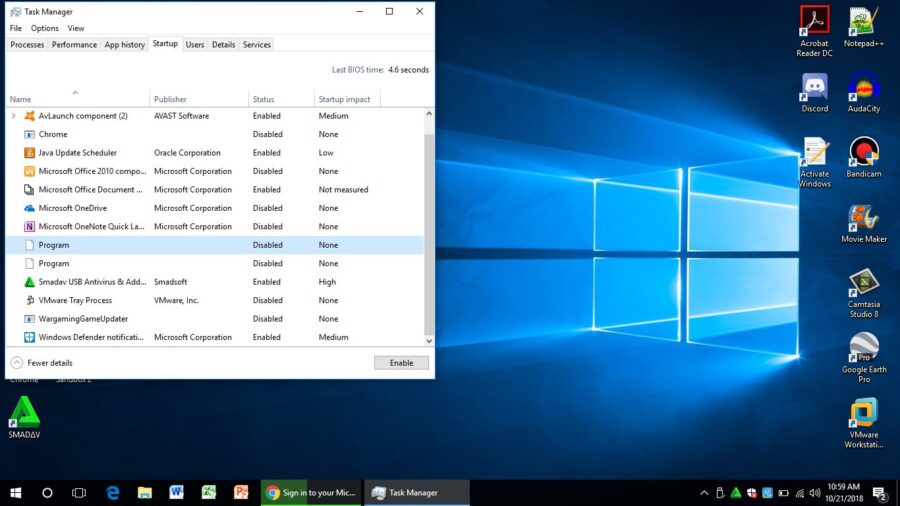
2 Unknown Programs from Task Manager “Startup” Tab – Microsoft Q&A
Alternatives to the Startup Folder
Not everything needs the folder. Windows 10 offers built-in tools.
Settings App:
- Open Settings (Windows + I).
- Go to Apps > Startup.
- Toggle switches for listed apps.
This handles modern ones like Edge. For windows 10 settings → startup, it’s user-friendly but misses some.
Task Scheduler:
For advanced timing, but skip if you’re not tech-savvy—stick to basics.
These options complement the folder, especially for application startup management.
Troubleshooting: What If the Startup Folder Is Missing?
Sometimes, users say “startup folder missing windows 10.” It’s rare, but fixes exist1.
- Create it: In File Explorer, make a new folder at the path.
- Check environment variables: Open Command Prompt, type “set APPDATA” to verify.
- Use tools like Autoruns from Microsoft to scan all startups.
If apps won’t add, ensure shortcuts point correctly. Restart after changes.
For boot troubleshooting, monitor with Task Manager. High disk usage? Clear extras.
Difference Between User and Common Startup Folders
Understand this to avoid mix-ups.
- User startup folder: Only for you. Ideal for personal apps like your music player.
- Common startup folder: For all accounts. Great for shared tools like antivirus.
The difference between user startup and common startup folder windows 10 boils down to scope. Use common for family PCs, user for privacy.
Managing Startup for Better Performance
Startup impacts more than convenience. Too many apps compete for resources, spiking CPU and disk at boot.
Tips:
- Review monthly: Disable unused ones.
- Prioritize: Keep essentials like drivers.
- Monitor: Use Task Manager for stats.
Users in high-paced environments, like offices, benefit most. Faster boots mean quicker work starts.
Related to this, if you’re dealing with unknown calls or scams while troubleshooting online, check resources on spotting fraud. For example, learn about spotting and reporting phone scams to stay safe.
Real-Life Examples and Tips
Imagine helping a friend with a slow PC. You open the folder, remove old printer software—boot time drops.
Or, for multi-user setups: Add a browser to common for everyone.
Quotes from users: “Finding the startup folder path windows 10 saved my sanity—no more manual launches!” (from online forums).
Statistics: On average, Windows 10 boots in 30-60 seconds; excess startups add 10-20%. Optimize for under 30.
If exploring router access for network tweaks, see 192.168.31.228:8080 router guide.
Security Considerations
Auto-starts can pose risks if malware hides there. Scan regularly with Windows Defender.
Avoid dodgy downloads—stick to trusted sources2.
For phone-related security, like verifying unknown numbers, resources exist: identify unknown numbers or protect your phone number online.
FAQs
How do I find the startup folder in Windows 10?
Use Run: type shell:startup for personal, shell:common startup for all.
How to add a program to the startup folder in Windows 10?
Create shortcut, drag to folder.
Windows 10 startup folder for all users?
Yes, via shell:common startup.
Can’t find the startup folder in Windows 10?
Create it manually or check hidden files.
How to open the startup folder using Run command Windows 10?
Windows + R, type shell:startup.
Steps to manage startup apps in Windows 10?
Use folder, Task Manager, or Settings.
How to remove apps from startup folder in Windows 10?
Delete shortcuts.
For more on digital safety, explore virtual phone numbers or phone numbers insights.
Conclusion
In summary, knowing where to find the startup folder in windows 10 empowers you to customize your PC’s launch behavior easily. From quick access via Run commands to managing user vs. common folders, these steps keep things simple and efficient. Balance auto-starts to avoid performance hits, and use tools like Task Manager for oversight. Your Windows 10 experience gets smoother with these tweaks3.
What programs do you add to your startup for daily convenience? Share in the comments!
References
- Dell Support: How to Add App to Startup in Windows 10 – Step-by-step for adding via shortcuts and Run. Suited for everyday PC owners on Dell hardware, but applicable broadly. ↩︎
- Microsoft Support: Configure Startup Applications in Windows – Official guide on managing startup via folders, Settings, and Task Manager. Ideal for casual users seeking verified steps. ↩︎
- Superuser: Can’t Find Startup Folder on Win10 Machines – Community discussion on troubleshooting missing folders, with paths and creation tips. Great for semi-technical audiences facing common issues. ↩︎