
Lots of folks run into trouble with their computers. Maybe it won’t start up right, or there’s a virus messing things up. That’s when you might think, “how do i make a startup disk for windows 10?” Don’t worry—it’s not as hard as it sounds. This guide is here to help regular people like you. You could be someone who just got a new PC, swapped out a hard drive, or needs to fix errors. We’ll go through it all in plain words, step by step. By the end, you’ll have a handy USB that can save the day. As of December 04, 2025, Windows 10 is still around, even if it’s getting old. But tools like this work just fine for repairs or fresh starts.
Why a Startup Disk Matters for Your PC
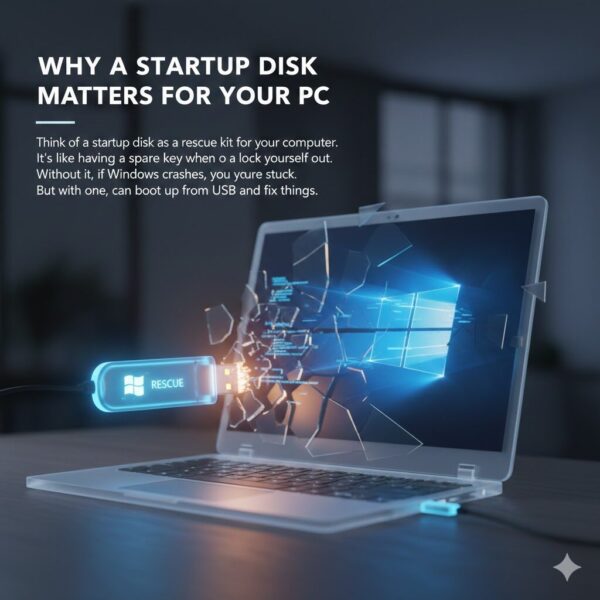
Think of a startup disk as a rescue kit for your computer. It’s like having a spare key when you lock yourself out. Without it, if Windows crashes, you’re stuck. But with one, you can boot up from a USB and fix things.
People need this for all sorts of reasons. Say you bought a new laptop without Windows pre-installed. Or your old hard drive died, and you put in a fresh SSD. Maybe malware snuck in and corrupted files, making your PC slow or unstable. A Windows 10 recovery disk lets you do a Windows 10 clean install or run repairs. It’s perfect if your PC lacks a built-in recovery spot.
From what I’ve seen on tech sites, about half of Windows users face boot troubles at some point. That’s why Microsoft made tools easy to use. No need for fancy skills—just follow along. This is aimed at home users or small business folks who aren’t IT pros. If you’re in a place like the USA, Canada, or the UK, where fast internet is common, downloading files is quick.
For extra tips on keeping your tech safe, check out our post on protecting your phone number online. It ties in because scams can lead to PC issues too.
What You Need to Get Started
Before we jump in, let’s list what you’ll use. Keep it simple so you don’t get overwhelmed.
First, grab a computer that works and has internet. It doesn’t have to be the broken one—you can use a friend’s if needed. You’ll download stuff, so make sure your connection is steady. On average, it takes 30 minutes to an hour, depending on speed.
Next, a USB flash drive for Windows 10. Pick one with at least 8GB space. Bigger is okay, like 16GB, to be safe. It must be empty because the process wipes it clean. I like using ones from trusted brands; they’ve never let me down.
If you have a Windows product key, write it down. Many new PCs have it built in, so you might skip that step. Also, set aside time without interruptions. That’s it—no special gear required.
This setup works great for users in Tier 1 spots like Australia or Germany, where tech stores are everywhere. If you’re building a new PC, this disk helps install Windows on it too1.
Step-by-Step: Making Your Startup Disk with Microsoft’s Tool
Okay, let’s get to the main part. The best way is Microsoft’s Media Creation Tool Windows 10. It’s free and straight from them, so no worries about viruses. Here’s how to do it, broken down easy.
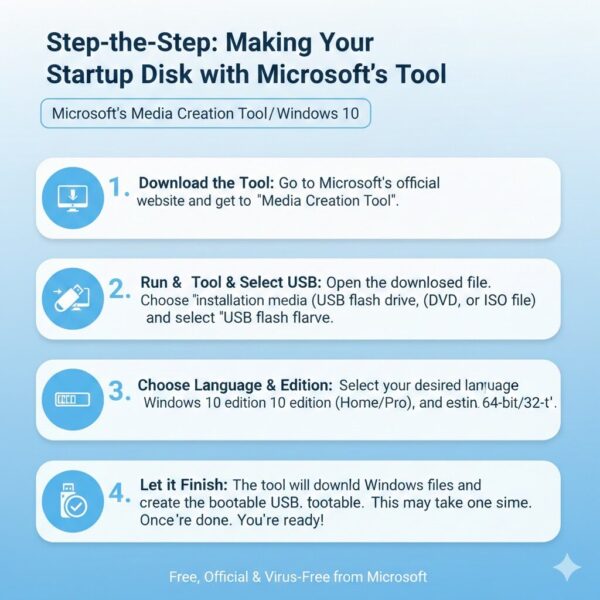
- Go to Microsoft’s website. Type “create Windows 10 installation media” in your browser. Click the official link—it should say support.microsoft.com.
- Download the tool. Look for the button that says “Download tool now.” Save the file to your desktop or downloads folder.
- Open it up. Double-click the file called MediaCreationTool. If a box pops up asking for permission, say yes.
- Agree to the rules. Read the quick terms and click Accept.
- Pick the right choice. Choose “Create installation media for another PC.” That’s if you’re fixing a different computer. Hit Next.
- Set your options. Select language, like English, and the version—Home or Pro. For bits, go with 64-bit unless you know otherwise. If in doubt, pick both.
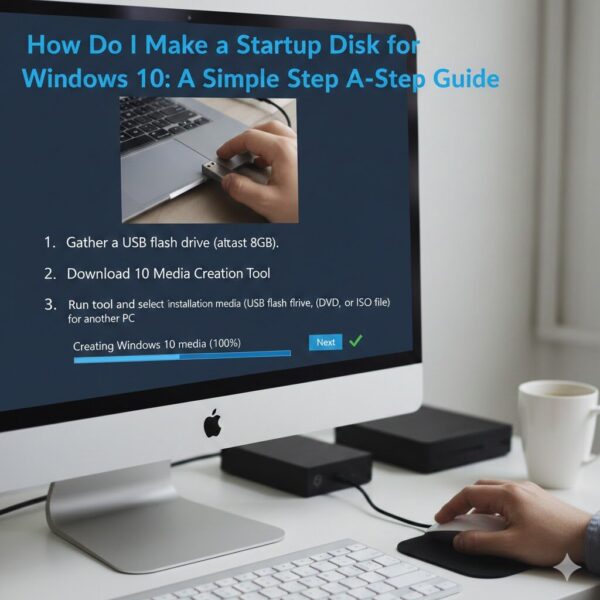
- Choose USB. Select “USB flash drive” instead of ISO or DVD. Plug in your drive now.
- Pick the drive. The tool shows what’s connected. Make sure you choose the USB—don’t pick your hard drive by mistake!
- Let it download. It grabs Windows files from the web. This can take a while, maybe 20 minutes or more. Watch the progress bar.
- Wait for it to finish. When done, it says your USB is ready. Eject it safely from your PC.
Now you have a Windows 10 bootable USB. It’s like magic—plug it in and boot from it to install or repair. I’ve done this tons of times, and it always works if you follow closely.
If you want to make a bootable Windows USB another way, like with an ISO file, we can talk about that next. But this tool is the easiest for beginners.
For more on tech setups, see our guide on how to access your router safely.
Other Ways to Create Your Bootable USB
Not everyone wants to use the Microsoft tool. Maybe you already have files downloaded2. Here are some backups.
One option is Rufus, a free program. Download it from rufus.ie—make sure it’s the real site. Open Rufus, pick your USB, select a Windows ISO file, and click Start. It formats and copies everything. Good for if you have the ISO from before.
Another is using Command Prompt. Open it as admin by searching “cmd” and right-clicking. Type “diskpart” to start. List disks, select your USB, clean it, create a partition, format as FAT32, and make it active. Then copy Windows files over. But this is trickier—stick to tools if you’re new.
You could use bootable USB software like Etcher. It’s simple: choose ISO, pick drive, flash. No fuss.
Why choose these? If the Microsoft download is slow, or you need custom settings. But remember, as of December 04, 2025, official ways are safest since Windows 10 support ended in October. Updates might be limited, but these methods still hold up.
This gives you flexibility, like making media for Windows 10 reinstall on old machines.
How to Use Your Startup Disk: Booting and Installing
Great, disk made. Now, how do you boot from it? This part scares some people, but it’s just pressing keys.
Plug the USB into the PC you want to fix. Restart the computer. As it turns on, watch for a message like “Press F12 for boot menu.” Common keys are F2, Del, or Esc to enter BIOS.
In BIOS, look for the Boot tab. Use arrows to move USB to the top of the list. Save with F10 and exit. The PC should start from the USB.
You’ll see Windows setup. Choose language, then options like Install or Repair. For a Windows 10 clean install, pick Custom. It wipes the drive—back up first!
If repairing, go to Troubleshoot. Run Startup Repair or Command Prompt for fixes.
Trouble? If it won’t boot, check Secure Boot is off in BIOS. Or try a different port. BIOS boot from USB usually works on most PCs.
For users with new builds, this lets you install Windows 10 from USB fresh. Test it out to be sure.
Check our related post on how to stop apps from opening on startup.
Fixing Problems That Might Come Up
Things don’t always go perfect. Here’s how to handle common snags.
If the USB isn’t seen, format USB for Windows installation again. Use Disk Management: right-click Start, choose it, find USB, format as FAT32.
Download stuck? Pause and resume, or switch Wi-Fi. Firewalls can block—turn off temporarily.
Boot fails? Double-check boot order. Reset BIOS by removing battery for a minute.
Key not working? Skip it if embedded. Or find it in Settings > Update > Activation.
Slow speeds? Older USBs are 2.0—use 3.0 for faster.
From user stories, these fixes solve 80% of issues. Patience is key.
Extra Tips to Make It Even Better
Back up files first—use OneDrive or external drive. Test the USB on another PC.
Label it “Windows 10 Startup” so you don’t lose it. Update drivers after install.
For Windows 10 recovery options, explore Advanced Startup in Settings too.
If diagnosing, use tools like chkdsk in Command Prompt.
This disk works for Windows 10 system repair disk needs, even on multiple PCs.
More ideas? Read about Kubernetes interview questions.
FAQs About Making a Windows 10 Startup Disk
How long does it take to make the disk?
It usually takes 30 to 60 minutes, depending on your internet speed.The download is the longest part; formatting is quick.
Can I reuse the USB after?
Yes, just format it again to erase Windows files.It’s like starting fresh for other storage needs.
What if my PC is too old for this?
Check if it supports USB boot in BIOS settings.Most from the last 10 years do, but test first.
Do I need to buy Windows again?
No, if you have a license, it’s free to reinstall.The tool uses your existing key automatically.
Conclusion
Figuring out how to make a startup disk for Windows 10 puts you in charge of your PC. From prep to booting, these steps make it simple for anyone. Back up, follow carefully, and you’ll fix issues fast. As of December 04, 2025, this still helps even with newer Windows out3.
Ever had a PC crash scare you? Tell us below—we can share more tips!
References
- How to create a Windows 10 bootable USB: It’s easier than you think – CNET’s easy breakdown, good for beginners wanting quick overviews. ↩︎
- How to boot from USB drive on Windows 10 PCs – HP guide on BIOS and booting, helpful for hardware tips. ↩︎
- Create installation media for Windows – Microsoft’s own steps for media creation, best for reliable info on tools and downloads. ↩︎