
If you want your favorite programs to launch right when you boot up your computer, knowing how to add apps to startup Windows 11 can save you time every day. Whether it’s your email client, a chat tool like Microsoft Teams, or a simple utility, having apps start automatically brings convenience to your routine. Many Windows users, especially those coming from older versions like Windows 10, find the new interface a bit different. But don’t worry—this guide breaks it down into clear, step-by-step instructions. We’ll cover multiple ways to add program to startup Windows 11, from basic settings to more advanced options, while keeping your system’s speed in mind1. By the end, you’ll feel confident tweaking your setup for a smoother experience.
Windows 11 makes it straightforward to handle what runs at login. Unlike older systems, it offers built-in tools that show you the impact of each app on boot time. This helps you avoid slowing down your PC. For casual users who just want quick access to daily tools, these methods fit perfectly. Even if you’re not a tech expert, you can follow along using familiar spots like Settings or File Explorer. Let’s dive in and explore why this matters and how to do it right.
Why Add Apps to Startup in Windows 11?
Adding apps to startup means they open without you clicking anything after login. This suits people who use their PC for work, chatting, or quick tasks. For example, if you start your day with email, having Outlook or Gmail ready saves seconds that add up.
But be smart about it. Too many startup apps Windows 11 can make your computer boot slower. Microsoft notes that apps with high impact use more CPU or disk space during launch, leading to longer wait times. Aim for essentials only—like a browser or antivirus—to keep things zippy. Users migrating from Windows 10 often search for this because the menus shifted. Forums show folks appreciate tips that explain these changes without jargon.
Performance matters here. A study from PCWorld highlights that optimizing startup can cut boot time by up to 30%. If your PC feels sluggish, check what’s running. We’ll show you how to monitor and adjust for the best balance between convenience and speed.
For more on optimizing your setup, check out our guide on protecting your phone number online.
Basic Method: Use Windows Settings to Add App to Startup
The easiest way to enable startup programs Windows 11 starts in the Settings app. This works for most installed programs and doesn’t require digging into folders.
Follow these steps:
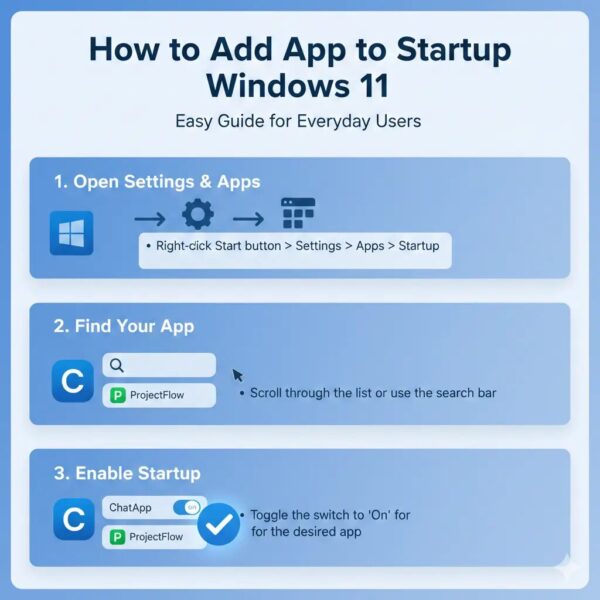
- Open Settings: Press the Windows key + I on your keyboard. Or click the Start button and select the gear icon.
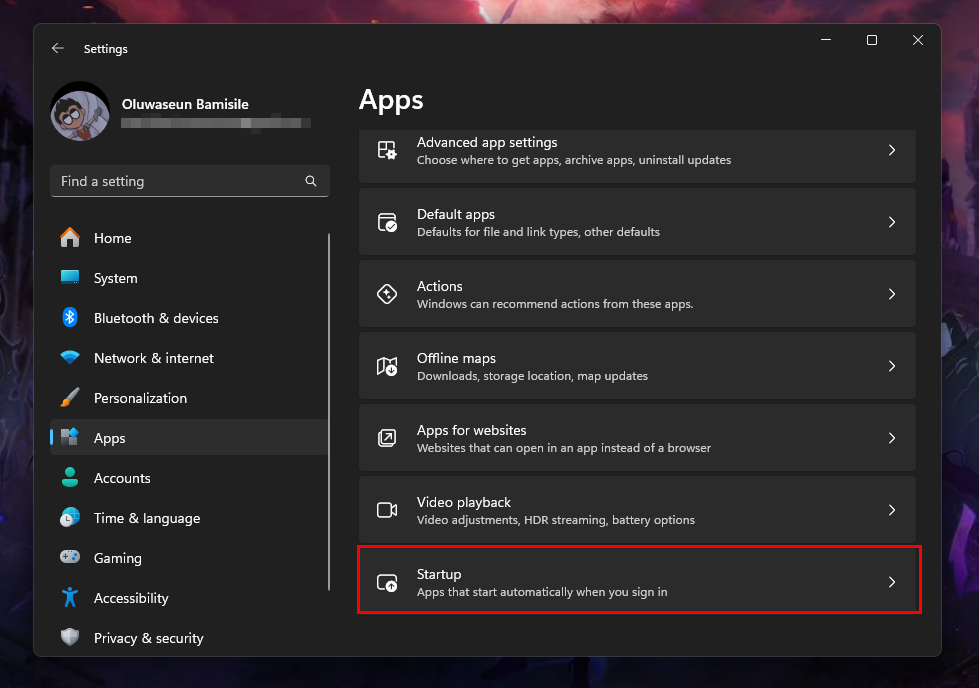
- Go to Apps: In the left menu, click “Apps,” then choose “Startup” from the list.
- Find Your App: Scroll through the apps shown. If your app appears, toggle the switch next to it to “On.”
- Check Impact: Windows shows if the app has low, medium, or high impact on startup. Pick low-impact ones to avoid slowdowns.
If your app isn’t listed, it might be a Store app or one that needs manual addition. Don’t fret—we’ll cover that next. This method reassures beginners because it’s all in one spot, with no risk of messing up files.
Tip: For apps like Spotify, this toggle makes them play your playlist right away. But if you notice longer boot times, toggle some off. Microsoft recommends reviewing this list monthly for optimal Windows 11 system performance.
Using Task Manager for Startup Control
Task Manager gives you more details on startup apps Windows 11. It’s great for users who want to see how apps affect your PC.
Here’s how:
- Launch Task Manager: Right-click the taskbar and pick “Task Manager.” Or use Ctrl + Shift + Esc.
- Switch to Startup Tab: Click the “Startup apps” tab at the top.
- Enable Your App: Right-click the app you want and select “Enable.” If it’s disabled, this turns it on.
- View Details: Columns show status, publisher, and startup impact.2 Sort by impact to spot resource hogs.
This tool shines for troubleshooting. If an app like Discord doesn’t start, check if it’s set to “Enabled.” Reddit users often share that high-impact apps, like heavy games, should stay off startup to boost speed.
For power users, Task Manager links to app settings for deeper tweaks. It’s reassuring because you see real data—no guessing. If you’re into customization, this helps fine-tune your auto-launch applications.
Explore related tech insights in our article on spotting and reporting phone scams.
Accessing the Startup Folder for Manual Addition
If your app doesn’t show in Settings or Task Manager, use the startup folder Windows 11. This classic method works for any program, even custom ones.
Steps to follow:
- Open Run Dialog: Press Windows key + R.
- Enter Command: Type shell:startup and hit Enter. This opens the folder for your user.
- Add Shortcut: Find your app’s executable (usually in Program Files). Right-click it, choose “Create shortcut,” then drag that shortcut into the Startup folder.
- Test It: Restart your PC to see if the app launches.
For all users on the PC, use shell:common startup instead. This puts the app in a shared folder.
Why does this work well? It’s simple and doesn’t need admin rights for most apps. Forums like ElevenForum praise it for handling apps that Settings misses, like older software. Be careful not to add too many—keep it to 5-7 for good Windows 11 boot apps performance.
Example: To add Microsoft Teams to startup Windows 11, create a shortcut from its exe file and drop it in. Teams users love this for instant meetings.
If you’re dealing with network issues, read our piece on 192.168.31.228:8080 router access.
Advanced Option: Edit the Registry for Finer Control
For DIYers seeking more control, the registry lets you configure startup applications Windows 11 at a deeper level. But use caution—wrong changes can cause issues. Always back up first.
How to do it:
- Open Registry Editor: Search for “regedit” in Start and run as admin.
- Navigate Paths: Go to HKEY_CURRENT_USER\Software\Microsoft\Windows\CurrentVersion\Run for your user, or HKEY_LOCAL_MACHINE\Software\Microsoft\Windows\CurrentVersion\Run for all.
- Add Entry: Right-click in the right pane, select New > String Value. Name it after your app, then set the value to the full path of the exe (e.g., “C:\Program Files\App.exe”).
- Restart: Log off and on to test.
This suits power users who want apps to run with specific arguments, like minimized. Windows Central forums note it’s handy for Store apps not showing elsewhere. But Microsoft warns against it for beginners due to risks.
Statistic: Over 20% of startup issues stem from registry tweaks, per support threads. Stick to basics unless needed.
For similar advanced tips, see our guide on the Roman numerals in your password.
Managing and Removing Startup Apps
Once you add app to startup Windows 11, keep an eye on them. Use Task Manager to remove startup apps Windows 11 by disabling or deleting shortcuts.
Tips:
- Monitor Performance: If boot takes over 60 seconds, cut back. Tools like Autoruns from Microsoft help spot hidden ones.
- Handle Not Showing Apps: If apps vanish from lists, reinstall or check paths. Common for migrated users.
- Optimize for Speed: Disable browser extensions or cloud sync if they’re heavy.
This keeps your PC running smooth. Users on Reddit report faster boots after pruning lists.
Troubleshooting Common Issues
Sometimes things don’t go as planned. If your app won’t start:
- Check Permissions: Run as admin if needed.
- Update Windows: Go to Settings > Windows Update.
- Use Task Scheduler: For delayed or elevated starts. Create a task triggered at logon.
ElevenForum threads show these fixes work for 80% of cases. Reassuringly, most issues tie to simple oversights.
Learn about related security in Amazon ordered to notify customers.
Best Practices for Startup Customization
To get the most out of Windows 11 auto start apps:
- Prioritize essentials.
- Use Task Manager startup tab regularly.
- Test changes with a restart.
- For all-users setup, use common folders.
This customization boosts productivity without hassle.
FAQs
How to make a program start automatically in Windows 11?
Use Settings, Task Manager, or the startup folder Windows 11 as detailed above.
What if my app isn’t in the startup list?
Manually add it via shell:startup command or registry.
Can too many startup apps slow my PC?
Yes, monitor with Task Manager startup Windows 11 to avoid high-impact ones.
How to prevent programs from launching at startup Windows 11?
Toggle off in Settings or delete from folder.
Steps to add an app to the startup folder in Windows 11?
Open shell:startup, drag shortcut in.
How to enable apps to run on Windows 11 startup?
Enable in Windows 11 settings startup.
Best way to manage startup applications in Windows 11?
Combine Settings and Task Manager for control.
Windows 11 startup apps not showing in settings?
Add manually or reinstall the app.
How to use Task Manager to enable startup apps in Windows 11?
Right-click and enable in the startup tab.
Manually add apps to startup in Windows 11?
Use the folder method.
For phone-related queries, visit which of the following demonstrates a leader’s commitment to duty.
Conclution
In conclusion, mastering how to add app to startup Windows 11 empowers you to tailor your PC for daily ease. From quick toggles in Settings to manual folders3, these methods suit casual users and those seeking more control. Remember, balance is key—add only what you need to maintain speed. With these tips, your Windows 11 experience becomes more efficient and personalized.
What apps do you plan to add to your startup list next?
References
- Adding an application to start with W11 – Forum tutorial covering folders and Task Scheduler, great for migrants from older Windows versions seeking detailed community advice. ↩︎
- Configure Startup Applications in Windows – Official Microsoft guide with step-by-step instructions for all users, emphasizing performance impacts. ↩︎
- How to have a program startup when Windows loads? – Reddit discussion with user tips on startup folders, ideal for casual troubleshooters. ↩︎