
If your computer takes forever to start up, you might wonder how to disable startup applications in Windows 10. Many programs launch automatically when you turn on your PC, eating up resources and slowing things down. This guide shows you simple ways to fix that1. You’ll learn methods that everyday users can follow without needing expert skills. Whether you’re a student rushing to class or an office worker starting your day, faster boot times make a big difference.
Why Startup Apps Slow Down Your PC
Startup applications run in the background right after you log in. They can include things like chat apps, cloud services, or antivirus software. While some are useful, others are just bloatware from old installs. Too many of these can lead to slow startup Windows 10 issues, high CPU use, and even disk overload.
Think about it: Your machine has to load the operating system, then all these extras. If you notice delays or fans spinning loudly at boot, it’s time to act. Optimizing startup helps with boot time optimization Windows and overall smoothness. Users often report cutting boot times by half after disabling unnecessary items.
Common culprits include browsers like Microsoft Edge, media players, or update checkers. For example, if you rarely use a certain app but it starts every time, that’s wasted power. Students might see this with school software, while office folks deal with productivity tools. The good news? You don’t need advanced tools—just built-in Windows features.
Key Methods to Disable Startup Programs Windows 10
Windows 10 offers straightforward tools for this. We’ll cover the main ones: Settings app, Task Manager, and more advanced options. Each method suits different needs, from quick toggles to deeper checks.
Using the Settings App for Easy Control
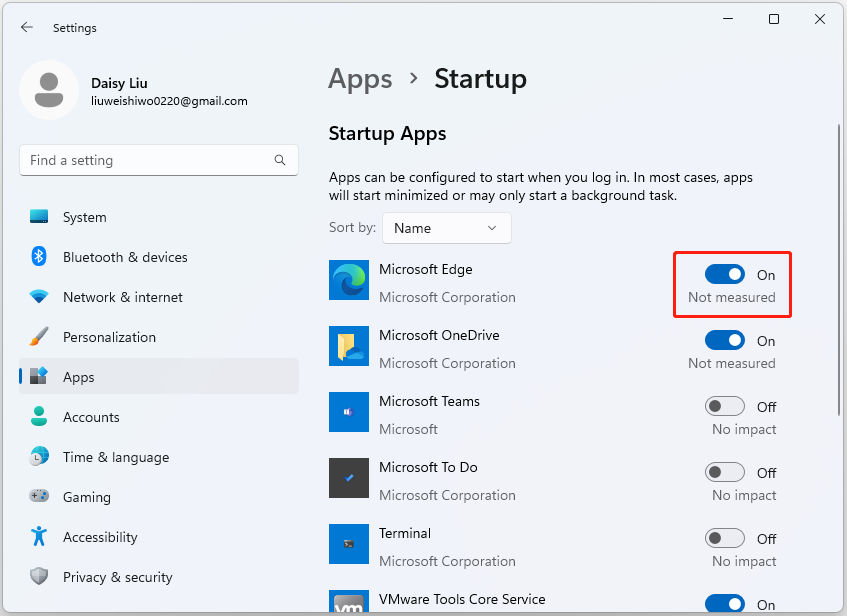
The Settings app is perfect for beginners. It lists apps and lets you switch them off with a click. Here’s how:
- Press the Windows key and type “Settings.” Open it.
- Click on “Apps,” then select “Startup” from the left menu.
- You’ll see a list of apps with toggles. Flip the switch to “Off” for ones you don’t want starting automatically.
This method shows startup impact high/medium/low ratings. High-impact apps slow you down most—target those first. For instance, if a game launcher has high impact but you only play weekends, disable it.
Why choose Settings? It’s visual and safe. No risk of breaking things. If an app isn’t listed, don’t worry—we’ll cover that later.

Task Manager: Your Windows 10 Startup Manager
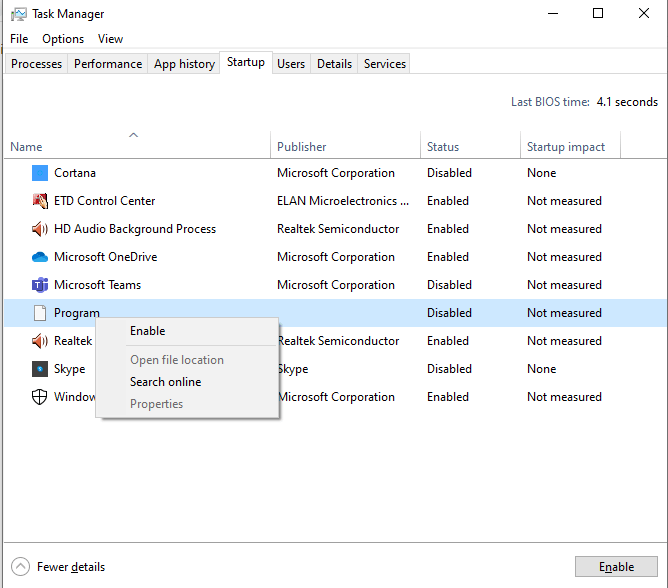
For more details, use Task Manager. It not only lists apps but shows their resource use. This helps you decide what to stop apps from running at startup.
Follow these steps:
- Right-click the taskbar and pick “Task Manager.” Or press Ctrl + Shift + Esc.
- Go to the “Startup apps” tab. (If tabs aren’t visible, click “More details” at the bottom.)
- Right-click an app and choose “Disable.” Or select it and hit the “Disable” button.
Look at the “Startup impact” column. It measures CPU and disk use during boot. Disable high-impact ones like background apps Windows 10 that you can open manually later.
Task Manager is great for troubleshooting. If your PC slows after boot, check here. Users often find surprises, like old printers or chat apps hogging resources. For example, one common issue is unidentified entries—enable the “Command line” column to see what they really are.
Exploring the Startup Folder in File Explorer
Some apps hide in folders instead of the main lists. Use File Explorer to hunt them down and remove startup programs Windows.
- Press Windows + R to open Run.
- Type “shell:startup” and hit Enter. This opens your personal startup folder.
- For all users, type “shell:common startup.”
- Delete shortcuts of apps you want to stop. Right-click and choose “Delete.”
Be careful—only remove what you recognize. This method catches apps not shown in Settings or Task Manager, like custom scripts or leftovers from installs.
Adding programs? Just drag shortcuts into the folder. But for disabling, deletion is key. This ties into automatic startup programs management for cleaner boots.

Advanced Tips: How to Prevent Programs from Opening on Startup in Windows 10
For tougher cases, try these. They’re still user-friendly but give more control.
Check Program Settings First
Many apps have their own options to turn off startup apps Windows 10. Open the app, go to preferences or settings, and look for “Start with Windows” or similar. Toggle it off.
For instance, how to stop Microsoft Edge from starting automatically in Windows 10? In Edge, go to Settings > System > Open Microsoft Edge with > Choose “New tab page” and uncheck startup boost if needed.
This is the gentlest way—no system changes required.
Use MSConfig for Legacy Control
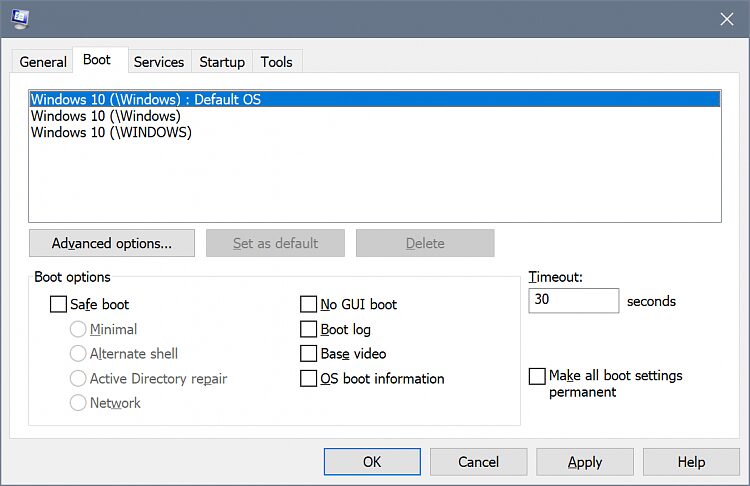
Though less common in Windows 10, MSConfig (System Configuration) works well, especially if you’re on an older setup or troubleshooting.
- Press Windows + R, type “msconfig,” and Enter.
- Switch to the “Startup” tab—it redirects to Task Manager in newer versions, but older ones list checkboxes.
- Uncheck items and apply changes. Restart to test.
MSConfig also handles system configuration Windows tweaks, like safe mode. Use it if Task Manager misses something.
Task Scheduler for Scheduled Starts
Some apps use Task Scheduler to launch2. Open it by searching “Task Scheduler” in the Start menu.
- Expand “Task Scheduler Library.”
- Look for app-related tasks.
- Right-click and disable or delete.
This catches sneaky ones, like update checkers.
Best Way to Disable Startup Programs in Windows 10 Without Affecting System
Always prioritize safety. Don’t disable essentials like antivirus or drivers. If unsure, search the app name online. For example, “What is Realtek Audio Console?”—it’s often safe to leave on.
Step by Step Guide to Manage Startup Applications Windows 10:
- Start with Settings for quick wins.
- Use Task Manager for impact details.
- Check folders and scheduler for hidden ones.
- Test after changes: Restart and time your boot.
Statistics show that disabling 5-10 unnecessary apps can reduce boot time by 20-50 seconds on average PCs. Users with SSDs see even bigger gains.
Common mistakes: Disabling too much at once—do a few, restart, check. If something breaks, re-enable via the same tools.
For how to make Windows 10 boot faster by disabling apps, combine this with other Windows 10 performance tips like disk cleanup or defrag.
Troubleshooting Slow Startup Windows 10
If disabling doesn’t help, dig deeper. Check for malware with Windows Defender. Update drivers via Device Manager. Or use a Performance Monitor for logs.
One user tip: If an app says “Couldn’t find this app,” it might be uninstalled or on a missing drive. Reinstall or ignore.
For older Windows like 7 or 8, methods overlap but use MSConfig more. Upgraders from these versions often need this guide.
Third-Party Tools: When Built-In Isn’t Enough
Tools like CCleaner or Autoruns offer more lists. But stick to trusted ones—avoid scams. For example, Revo Uninstaller helps spot extras.
Warning: Third-party apps can introduce risks. Use official methods first.
FAQs on Manage Startup Applications Windows 10
How to check which apps slow down Windows 10 startup?
Use Task Manager’s impact column.
Easy method to disable unnecessary startup apps in Windows 10?
Start with Settings toggles.
Can I re-enable apps later?
Yes, just toggle back on.
What if disabling breaks something?
Restart in safe mode and fix.
Does this work for Windows 11?
Similar, but check updates.
Conclusion: Speed Up Your Daily Routine
Mastering how to disable startup applications in windows 10 boosts your PC’s speed without hassle. By using Settings, Task Manager, or folders, you cut unnecessary load for quicker boots and smoother runs. Remember, target high-impact apps and test changes3. This suits casual users, students, and workers in Tier 1 and Tier 2 countries like the US, UK, Canada, Australia, and Europe, where fast tech matters for productivity.
What apps did you disable to speed up your Windows 10? Share in the comments!
See also
The Digital Presence of Phone Numbers 564-237-9355
4694070633 Is It a Cell Phone?
44-20-3322-2305 Scam or Amazon Delivery Call
References
- How do I prevent certain programs from… – Reddit – Community discussions offering real-user tips and troubleshooting for everyday PC owners. ↩︎
- Configure Startup Applications in Windows – Microsoft Support – Official guide with detailed methods for Windows users seeking reliable steps. ↩︎
- Disable Applications from Running on Startup – GCFGlobal – Educational resource with simple instructions for non-expert users aiming to improve performance. ↩︎